
7 Powerful Steps to Install Windows 11 Easily (2025 Guide)
If you are still on Windows 10, then it’s time to move further. Microsoft has already announced that Windows 10 support will end soon. It means it will not provide more security updates or fixes after October 2025.
So, if you want your computer to stay safe and up to date, you should install Windows 11.
Don’t worry — it is not difficult at all. I’ll surely guide you through everything in very simple ways. Even if you have never installed Windows before, you’ll be able to do it easily after reading this.
Table of Contents
Step 1: Check if Your PC Can Run Windows 11
First, you have to make sure your computer is ready for Windows 11.
Microsoft made some new rules for this version. You need a modern computer with TPM 2.0 and Secure Boot enabled.
To check it, go to Microsoft’s website and download the PC Health Check App.
Open it and click on “Check Now.”
In a few seconds, it will tell you whether your PC is compatible or not.
If your PC supports Windows 11 — great!
If it does not need to take tension. You can still use Windows 10 for now, but Microsoft will stop updates soon, so it is better to upgrade if you can.
Step 2: Backup Your Important Files
Before doing anything, keep your important files in a pen drive or in any other device.
Copy your photos, videos, and documents to a pen drive, an external hard disk, or upload them to Google Drive or OneDrive.
It is a small step, but it saves you from big trouble if any files which is important gets deleted or goes wrong during installation.
Once the backup is done, you are ready for the next step.
Step 3: Download Windows 11 from Microsoft’s Website
Now go to the official Microsoft website.
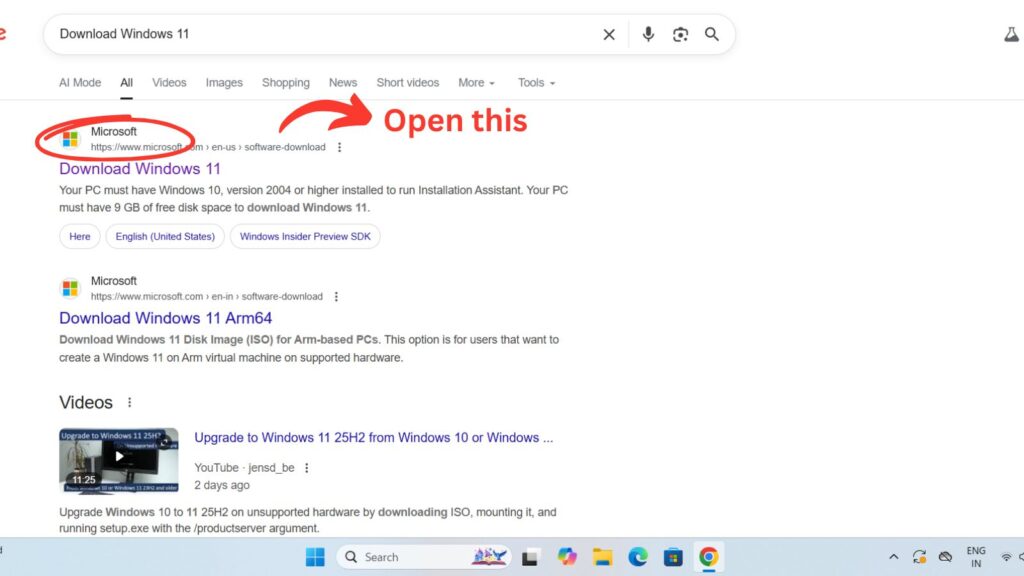
Search for “Download Windows 11” and open the first result that says it’s from Microsoft.com or directly Click here.
See The Image Below for reference:
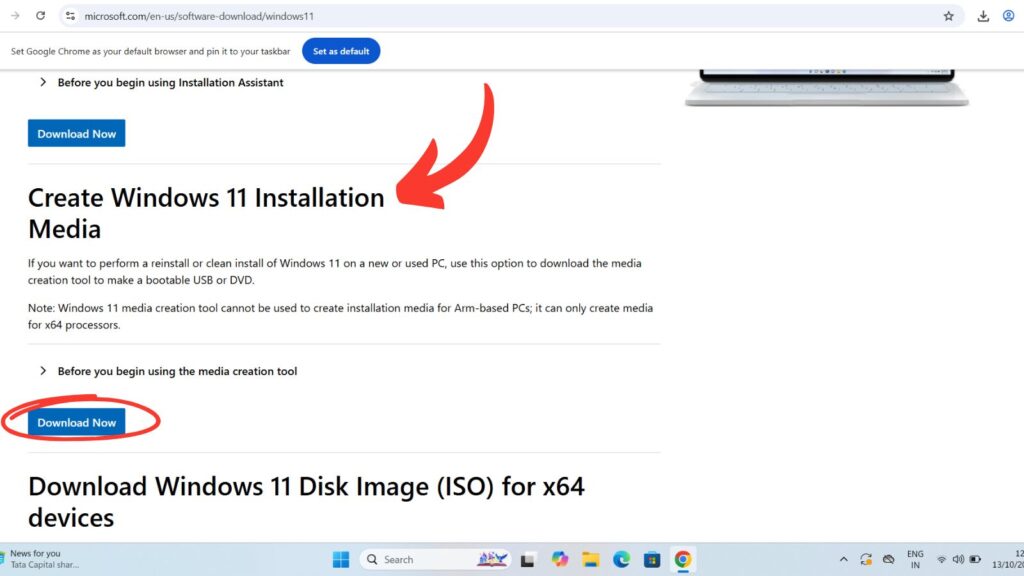
There you’ll see an option called “Create Windows 11 Installation Media.”
Click on Download Now.
After the download finishes, open the tool.
It will ask if you want to create installation media. Choose “Yes” and then select USB flash drive.
You need a pen drive with at least 8 GB space.
The tool will then download Windows 11 and make your USB drive ready to install.
This may take a few minutes depending on your internet speed, so just relax and let it complete.
Step 4: Turn On Secure Boot and TPM in BIOS
Now comes a part that sounds a bit technical but it’s actually simple.
Windows 11 needs Secure Boot and TPM 2.0 turned on.
Here’s what to do:
Restart your computer. As soon as it starts again, press F2, Delete, or Esc (the key depends on your laptop brand).
It will open the BIOS or UEFI screen.
Inside that, find the options called Secure Boot and TPM (sometimes it’s written as fTPM or PTT).
Turn both of them ON, save the settings, and restart your computer again.
Now your PC is 100% ready for Windows 11.
Step 5: Install Windows 11 Using the USB Drive
Okay, now the main part — installing Windows 11.
Plug in the USB drive that you created earlier.
Then restart your computer again.
While it’s starting, press F12 or F9 (depending on your system) to open the boot menu.
Select the USB drive from the list and press Enter.
The Windows 11 setup will start automatically.
It will first ask you to select your language and keyboard layout. Just click Next and then Install Now.
Step 6: Choose the Type of Installation
Now Windows will ask if you want to upgrade or install fresh.
If you want to keep your old files and apps, choose Upgrade.
But if you want a clean, fresh system (which I recommend for better performance), choose Custom: Install Windows only.
After that, you’ll see your disk partitions.
If you already have Windows 10 installed, you can delete the old partition (only if you have backed up your files).
Then choose the empty space and click Next.
Now Windows 11 will start installing.
It will copy all files automatically and restart your PC a few times. Don’t touch anything — just wait patiently.
Step 7: Finish the Setup
When your PC restarts, you will see a setup screen asking you to select country, language, and Wi-Fi network.
Then you will be asked to sign in with your Microsoft account.
If you don’t have one, you can easily create it easily
After signing in, set up your PIN, privacy settings, and a few more things.
Once that’s done, Windows will prepare your desktop.
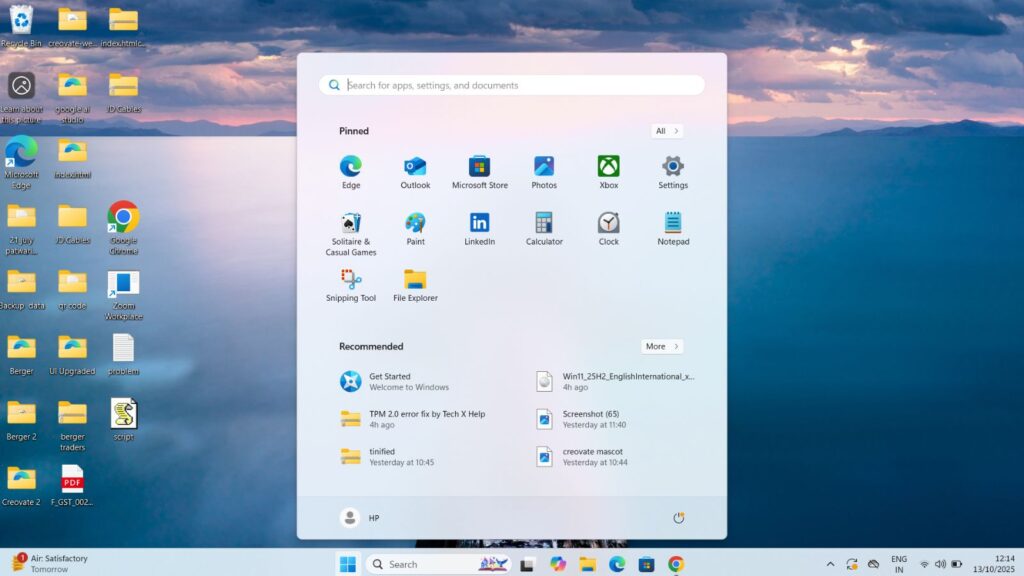
After a few minutes, congratulations — you’ll see the brand-new Windows 11 home screen! 🎉
What to Do After Installation is done
Once you reach your desktop, there are a few things you should do:
Open Settings then Windows Update then Check for updates.
Let Windows download all the latest updates and drivers.
It will help your computer run smoother.
Next, check if your sound, Wi-Fi, or Bluetooth are working fine.
If something is not working, just visit your laptop brand’s official site and download drivers for Windows 11.
Then activate your Windows using your product key, and install your favorite apps like Chrome, Office, or Spotify.
That’s it. Your computer is now fully updated and ready to use.
Common Problems and Easy Fixes
Sometimes people face small issues.
For example, if you see a message saying “This PC can’t run Windows 11,” it usually means TPM or Secure Boot is turned off.
Just go to BIOS again and turn them on.
If installation stops or gets stuck, try using a different USB port or create the USB again.
And if Windows 11 feels a little slow at first, don’t worry — it will become faster after all updates are installed.
Should You Upgrade to Windows 11?
Yes, definitely.
Windows 11 is very clean, faster, and more modern than Windows 10.
It has better security and a fresh look. You will surely love the interface of windows 11.
And since Windows 10 support is ending soon, switching now will keep your computer safe for years.
My Opinion
Installing Windows 11 is actually very simple when you follow the right steps.
You just need a USB drive, a backup of your files, and a bit of patience.
Once you finish, you’ll have a smooth, modern, and secure computer that feels brand new.
So do not wait until Windows 10 stops working — try Windows 11 today and make your PC future-ready.
Also Read:
5 Little-Known AI Tools and Hacks That Can Save You Hours
7 Easy Steps to Find Low Competition long-tail Keywords Fast