

7 Easy Digital Note Taking Tips That Actually Help Now!
Hey — if you are a university student and want digital note taking on an iPad or Android tablet, you are in the right place. This guide is short, clear, and made so anyone can follow. No big words. No fluff. Just plain steps you can use today.
Table of Contents
Why Digital Note Taking matters
Good notes save time. They help you study fast before tests. Digital notes can be clean, searchable, and with you all the time. If you set a simple system now, you will stop wasting hours looking for lost pages.
What you need first
You do not need perfect gear. Just these things:

- A tablet (iPad or Android) or a phone with a stylus — anything that can write or type.
- One note app. Pick one and stick with it for now.
- A folder or tag plan in that app to keep notes in order.
Pick one app and use it
Do not try many apps at once. Choose one app and learn its main features. For iPad, many students like apps that let you handwrite and type. For Android, choose an app that saves automatically and is easy to organize.
How to choose:
- Is it easy to write and erase?
- Can you make folders or tags?
- Can you search words later?
- Does it save to the cloud so you don’t lose notes?
Keep it simple: one app for lecture notes, one for projects if needed.
Tip 1: Make a clean folder system
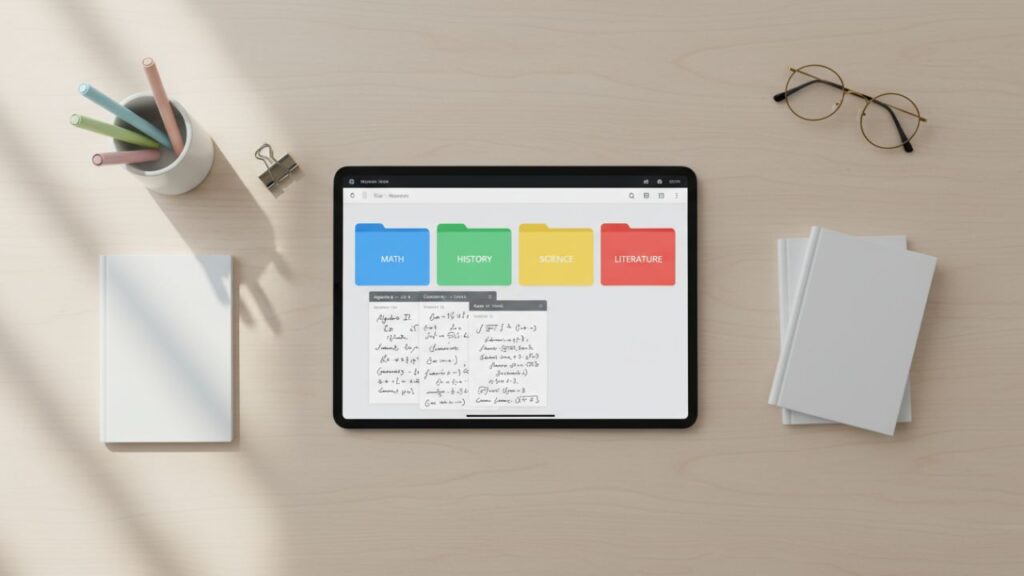
Create folders like these:
- Semester 1, Semester 2, or Subject: Math, Physics, etc.
- Inside each subject, make folders for Lectures, Assignments, and Summaries.
This way you always know where to put new notes. When exams come, you open the Summary folder and study fast.
Tip 2: Use one page per lecture
Start a new page for every lecture or class. Write date and topic at the top. This helps you find notes later. If you mix many topics on one page, it becomes hard to search.
Tip 3: Write short, not long
When taking notes:
- Write short lines or short bullets.
- Use short words.
- Don’t copy everything the teacher says. Write only the main points and examples.
Short notes are easy to read later. You will finish revision faster.
Tip 4: Use simple tags or colors
Tags help you find things fast. Use 2–3 tags only. For example:
- exam, homework, important
Or use color for urgency: - red for must-know, yellow for review later, green for example.
Don’t use too many colors. Two colors are enough.
Tip 5: Make a 2-minute summary after class
After class, spend two minutes writing 3 lines that say what the lecture was about. Put this at the top of the page. Later when you study, read only these 2-minute summaries first. You will get the main idea quickly.
Tip 6: Turn notes into study cards

From your notes, make small study cards or short bullet lists. Each card should be one idea or question and the short answer. This helps memory and makes quick revision easy.
Tip 7: Sync and backup your notes
Always turn on sync or backup in your app. If your device breaks or is lost, cloud backup keeps your notes safe. Check settings and enable auto-save.
How to use both handwriting and typing
Some students like to write by hand with a stylus. Others type. Both are fine. Here is an easy mix:
- Write quickly in class (handwrite on tablet).
- After class, type a clean version with headings and short bullets.
This gives the benefit of handwriting (fast capture) and typing (easy to read and search).
Simple daily workflow you can follow
Follow this 4-step routine every day:
- Open the lecture page and write main points.
- Tag the page with one or two tags (example: homework).
- Write a 2-minute summary at the top.
- After class, convert the hard parts into 3 study cards.
How to make notes that help memory
Use these simple ideas so you remember more:
- Use short questions and answers.
- Add one small example or drawing.
- Keep the layout neat. Big blocks of text are hard to read.
- Read your 2-minute summary the same day. Repetition is key.
Good habits for exam time
One week before the exam:
- Open each subject’s Summary folder.
- Read 2-minute summaries fast.
- Use study cards to test yourself.
This saves time and reduces stress.
What to do when you have group projects
Make a shared folder or shared notes page. Put tasks, deadlines, and who does what on the top. Change items you finish to “done.” This keeps the group on the same page.
How to connect notes to tasks
If you use a task app, put small links or task names in your notes. For example:
- In your note, write: “Task: Read ch. 3 (Due: 25 May)”
- Then add the same task in your task app.
This way, your note reminds you and your task app keeps the deadline.
Quick app tips (simple)
- Use search: Learn how the app search works. Search your words, not just page names.
- Use pinch-to-zoom or zoom writing if the app has it — this makes your handwriting neat.
- Use OCR (convert handwriting to text) if available, but only after you clean the notes.
Common mistakes and how to avoid them
- Mistake: Writing everything.
Fix: Write only main points and one example. - Mistake: Too many folders or tags.
Fix: Keep folders 3–5 per subject and tags 2–3 total. - Mistake: Not backing up notes.
Fix: Turn on cloud sync in the app settings. - Mistake: Using many apps at once.
Fix: Stick to one or two apps and learn them well. - Mistake: No review habit.
Fix: After each class, read the 2-minute summary. Make one little review every day.
Simple checklist to start today
- Choose one app.
- Make subject folders.
- Create one tag set (exam, homework, project).
- Start new page per lecture.
- Write a two-minute summary after class.
- Backup to the cloud.
How to make your notes look neat (even if your handwriting is messy)
- Use headings with bold or bigger font if you type.
- Use short bullets and small drawings. Draw simple arrows to show ideas.
- If handwriting is messy, type the short summary after class.
When to type vs when to handwrite
- Handwrite: When you need to draw or write math quickly.
- Type: When you want neat notes and easy search.
Mix them both for best result.
Study tips using digital notes
- Read the 2-minute summary before sleeping. It helps memory.
- Test yourself with cards 2–3 times a week.
- Teach a friend using your notes. Teaching is a fast way to learn.
Make one habit a week
Don’t change everything at once. Try this:
Week 1: Make the folder system.
Week 2: Start 2-minute summaries.
Week 3: Make study cards from old notes.
This slow approach makes the new system stick.
Short sample page layout (very simple)
Top: Date – Topic
Line: 2-minute summary (3 short lines)
Bullets: Main points and one example each
Tags: exam, homework, important
Bottom: 2 study cards (question / answer)
FAQs (short and simple)
Q: Do I need an iPad to do digital notes?
A: No. Any tablet or phone works. Bigger screen helps but not needed.
Q: Can I use Google Drive for notes?
A: Yes. Google Drive can store files and some apps save there. But use a good note app for writing and then save to Drive for backup.
Q: What if my handwriting is too messy?
A: Type a short clean summary after class. Use handwriting only for quick capture.
Q: How many tags should I use?
A: Keep it small. Use 2 or 3 tags only. Too many tags make searching harder.
Q: Will digital notes help for math and drawings?
A: Yes. Use stylus to draw. Many apps let you add images or math figures.
Android users can try Evernote — it’s one of the best free options for organizing study digitally.
You can explore GoodNotes official website to see how it helps you take clean handwritten note on your iPad.
Disclaimer: This guide gives simple steps and ideas. It is for learning and study help only. Use what fits you. If you have special needs for studies or devices, please check more sources or ask your teacher.
Also Read: